How to Open a PSD File Without Photoshop
 PS Online Team
Four ways to open a PSD without Photoshop, from quick previews to full layer editing in your browser, plus how to convert PSD to PNG or JPG.
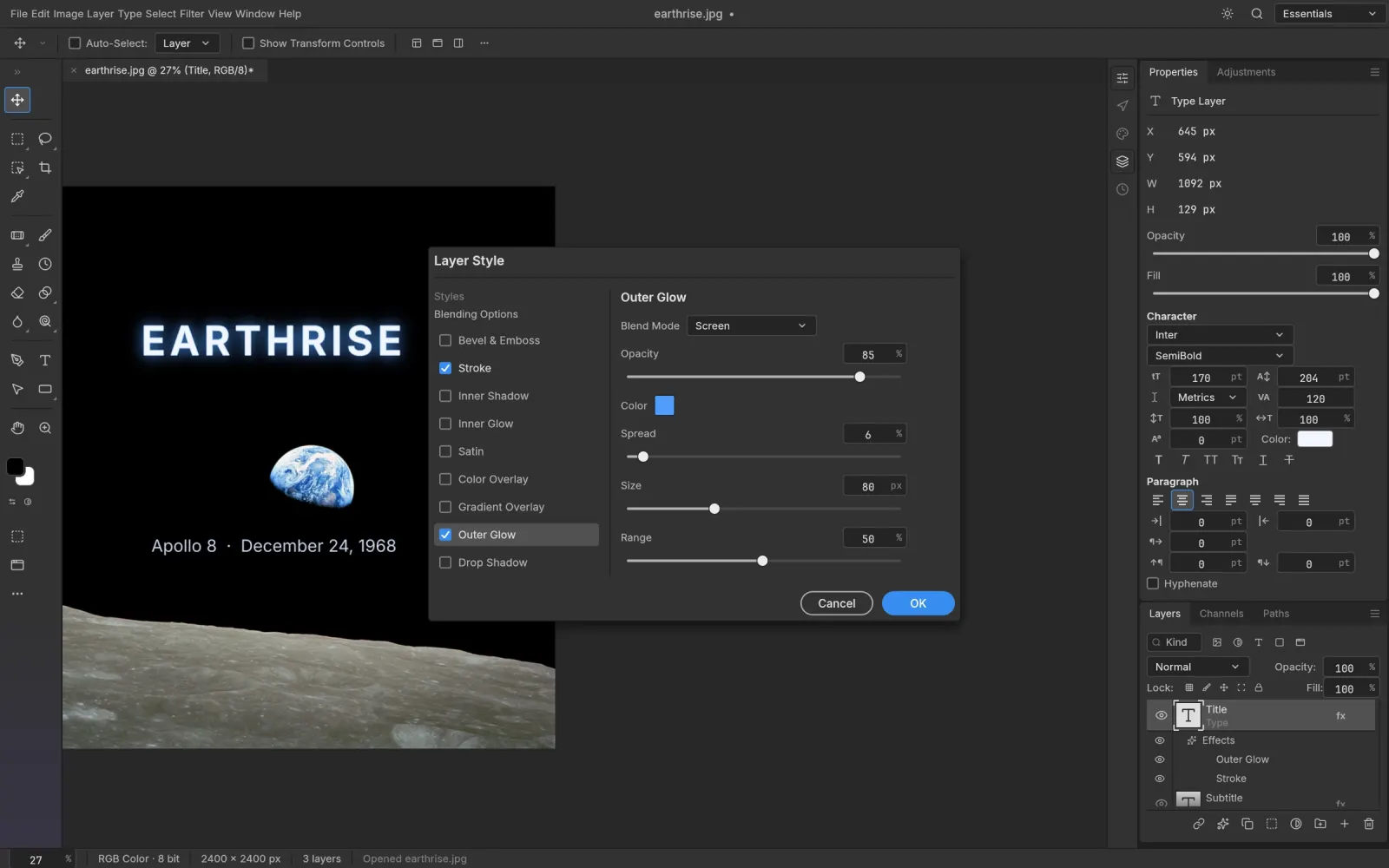
Someone sent you a .psd and you don't have Photoshop. Depending on whether you just need to see it or actually edit it, you have a few options.
1. Quick preview with your operating system
macOS Preview and Quick Look can show a flattened version of most PSDs. On Windows, File Explorer usually can't, unless you install a codec or viewer. Either way you only get a picture: no layers, no editing.
2. Open it in a browser-based PSD editor
This is the fastest way to get the layers without installing anything. In PS Online:
- Open the editor.
- Drag the PSD onto the window, or use File › Open.
- Toggle layers, edit type, adjust colors.
- File › Save writes a PSD again; File › Export › Export As gives you PNG, JPEG or WebP.
Layers, groups, masks, adjustment layers, layer styles, Smart Objects and type layers all open as editable. The file is processed in your browser and never uploaded, which matters for client work. More detail on the online PSD editor page.
3. Use a desktop app
GIMP and Krita can import PSDs, but support for adjustment layers, layer styles and text is limited, so complex files may not look right.
4. Ask for a different format
If you only need the final image, asking the sender for a PNG or PDF is sometimes simplest. If you need to make changes, you'll want the PSD and an editor that understands it.
Converting PSD to PNG or JPG
Open the PSD in PS Online, hide any layers you don't want, then File › Export › Export As and pick PNG (keeps transparency) or JPEG (smaller files). You can set quality and dimensions in the same dialog.
What about PSB files?
PSB is Photoshop's large document format for files over 2 GB. PS Online opens PSB the same way.
Ready? Open your PSD now. It's free and takes a few seconds.