
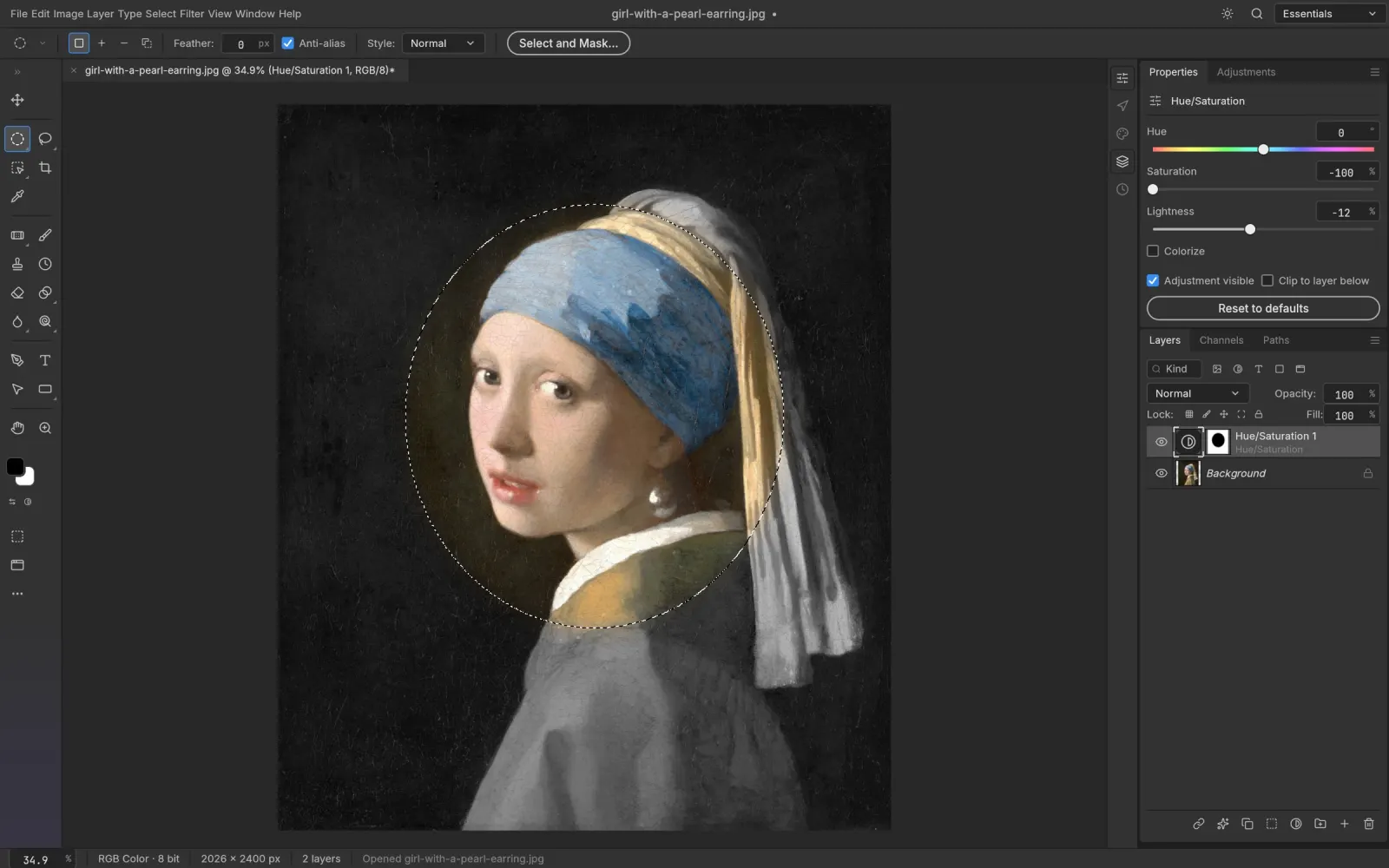
Two clicks to a cutout
- Open the editor and drop in your photo.
- Choose Layer › Remove Background.
PS Online finds the main subject and adds a layer mask that hides everything else. Because it's a mask, nothing is destroyed: paint with black to hide, white to reveal, or press Backspace on a selection to clean up a stray area.
Prefer to work with a selection instead? Select › Subject selects the subject so you can copy it to a new layer (Ctrl/⌘ J), invert it, or feed it into an adjustment layer.
Refine the edge like a pro
Automatic cutouts are a starting point. For hair, fur and soft edges, PS Online has the tools you know from Photoshop:
- Select and Mask to refine edges, smooth and feather
- Quick Selection, Magic Wand and Object Selection for adding or subtracting areas
- Background Eraser and Magic Eraser for quick, direct removal on simple backgrounds
- Brush on the mask with any size, hardness and opacity
Then replace the background
Once the subject is masked, add a new layer underneath and fill it with a color, a gradient or another photo. Need to remove an object rather than a whole background? Use Content-Aware Fill.
Your photos stay on your device
Most background removers upload your image to a server and give you back a low-res preview unless you pay. PS Online runs the subject model in your browser, so you get full resolution and full privacy.