
What makes a good Photoshop alternative
Most people searching for a Photoshop alternative want three things: no subscription, no relearning, and compatibility with PSD files they already have or receive. PS Online is built around exactly those.
Familiar from the first click
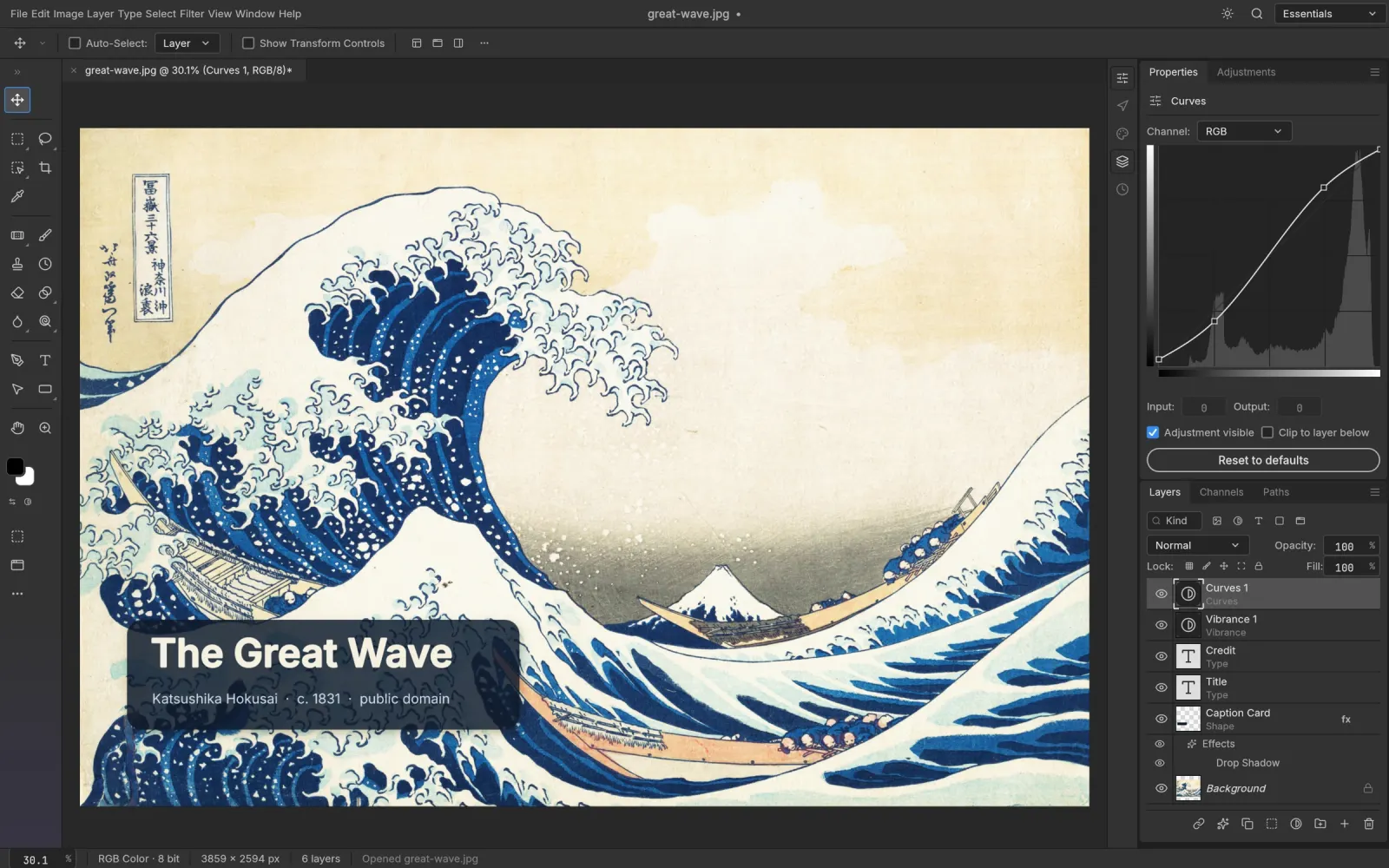
Menus, panels and tools follow Photoshop's layout. Ctrl/⌘ J duplicates, Ctrl/⌘ T transforms, B is the brush, V is move, and Alt-click samples. Tutorials written for Photoshop mostly work as-is.
Real PSD support
Open a PSD and you get its layers, groups, masks, adjustment layers, layer styles, Smart Objects and editable type, not a flattened image. Save back to PSD when you're done.
Pro tools, not just filters
- Non-destructive adjustment layers and smart filters
- Layer styles: shadows, strokes, glows, bevels and overlays
- Selections: Select Subject, Quick Selection, Select and Mask
- Retouching: Spot Healing, Patch, Clone Stamp, Content-Aware Fill
- A Camera Raw–style filter for photo grading
- Pen tool, shapes and vector masks
Free alternatives at a glance
| PS Online | GIMP | Photopea | |
|---|---|---|---|
| Runs in the browser | Yes | No, desktop install | Yes |
| Photoshop-style layout and shortcuts | Yes | Partly | Yes |
| Opens and saves PSD | Yes | Limited | Yes |
| Account required | No | No | No |
| Editor source code | Open source (PhotoCraft) | Open source | Closed source |
For deeper, head-to-head looks see PS Online vs Photoshop and PS Online vs Photopea.
When Photoshop is still the right call
If you rely on generative AI features, cloud documents, plug-ins or a print-production pipeline, stay with Adobe Photoshop. For everyday photo edits, quick PSD fixes, social graphics and learning, PS Online covers the essentials for free.