How to Remove a Background Without Photoshop (Free)
 PS Online Team
Remove an image background for free without Photoshop: one-click cutout, refining the edge with a mask, and exporting a transparent PNG, all in your browser.
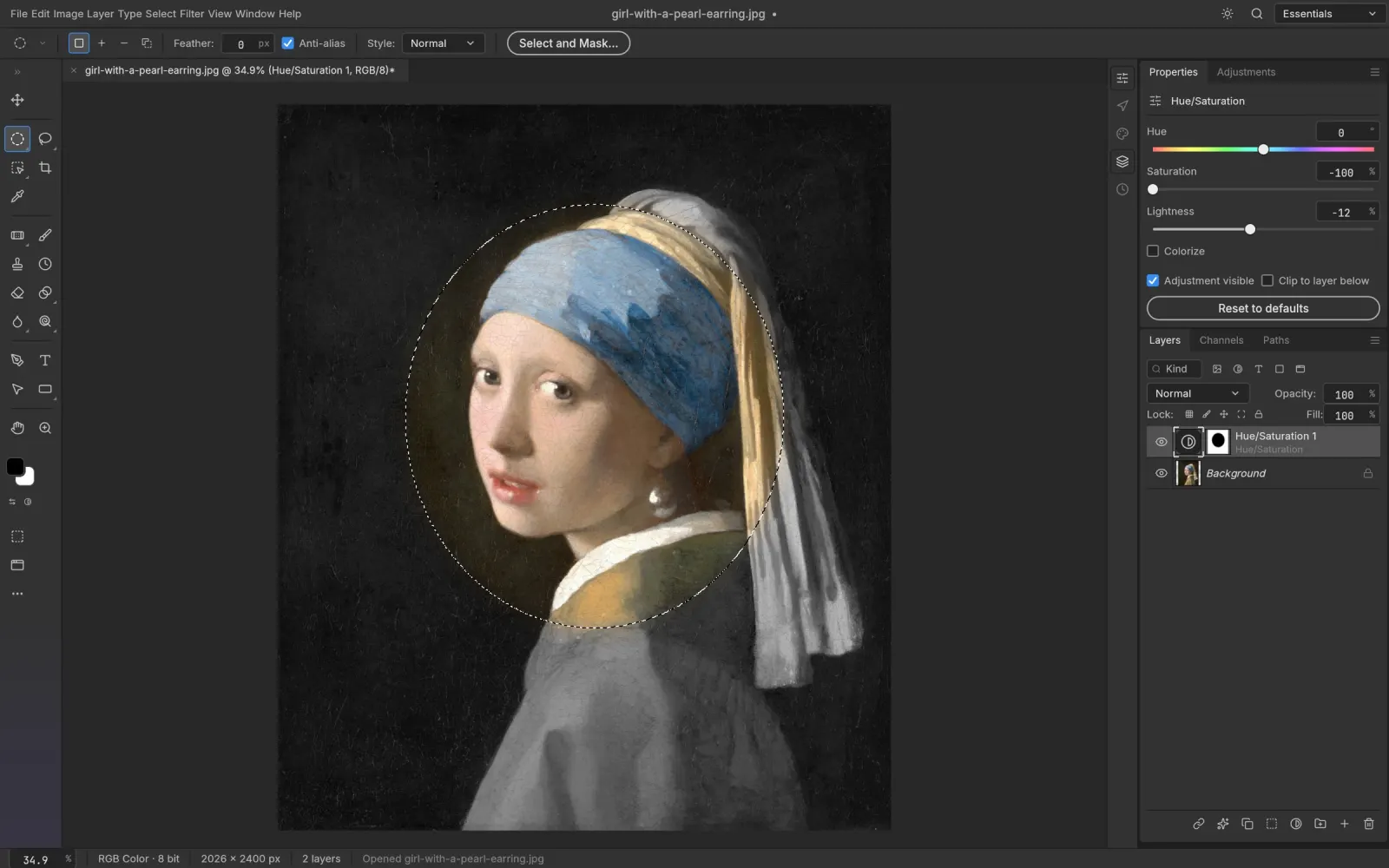
Removing a background is the single most common photo edit, for product shots, profile pictures, stickers and thumbnails. You don't need Photoshop for it. Here's how to do it for free in your browser with PS Online, and how to get a clean edge.
Step 1: Open your photo
Open the editor and drag in your image (JPEG, PNG, WebP, HEIC and more all work).
Step 2: Remove the background
Choose Layer › Remove Background. PS Online detects the subject and adds a layer mask that hides the background. The model runs on your device, so the photo isn't uploaded.
Because it's a mask, nothing is deleted. You can always bring parts back.
Step 3: Refine the edge
- Paint on the mask: select the mask thumbnail, then paint with black to hide or white to reveal. Lower the brush hardness for soft edges.
- Select and Mask: for hair and fur, use Select › Select and Mask to smooth, feather and shift the edge.
- Quick Selection: add or subtract areas the automatic cutout missed.
Step 4: Export a transparent PNG
Choose File › Export › Export As and pick PNG. Transparency is preserved. WebP also keeps transparency with smaller files.
Bonus: replace the background
Add a new layer below the subject and fill it with a color, a gradient, or drop in another photo. To remove a single object instead of the whole background, use Content-Aware Fill.
Why not a one-click website?
Many background-remover sites upload your photo, then charge for full resolution. PS Online is free at full resolution, keeps your image on your device, and gives you real masks to fix the result. If you're coming from Photoshop, the workflow will feel familiar; see how PS Online compares.