How to Use Photoshop Online for Free (2026 Guide)
 PS Online Team
Your options for using Photoshop online for free: what Adobe offers, which browser editors work like Photoshop, and how to get started with PS Online in under a minute.
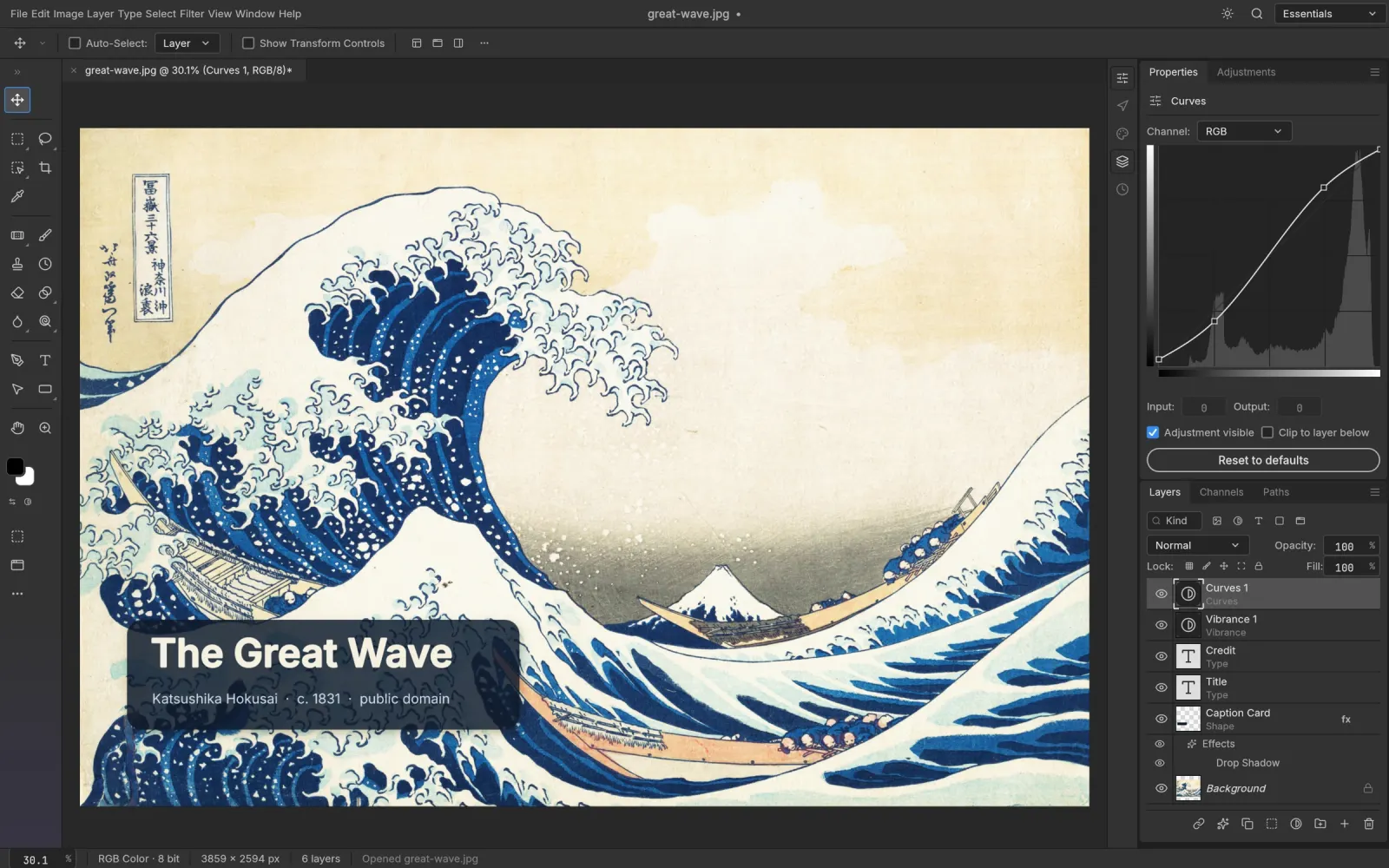
"Photoshop online free" is one of the most searched phrases in image editing, and for good reason: a full Photoshop subscription is a lot to pay if you only edit occasionally. Here's what's actually available in 2026, and how to pick.
Option 1: Adobe's own Photoshop on the web
Adobe offers Photoshop in the browser as part of its plans. It's the real Photoshop engine and syncs with Creative Cloud, but it needs an Adobe account and, for the full feature set, a paid plan. If you already pay for Creative Cloud, it's a good companion to the desktop app.
Option 2: A free browser editor that works like Photoshop
Several independent editors recreate Photoshop's workflow in a browser tab. They aren't Adobe products, but they open PSD files and use the same concepts: layers, masks, adjustment layers and familiar shortcuts.
PS Online is one of them. It runs PhotoCraft, an open-source editor compiled to WebAssembly, so everything happens on your device:
- Free, with no account and no install
- Real PSD support: open, edit and save PSDs with layers intact
- Photoshop-style tools: Remove Background, Content-Aware Fill, a Camera Raw–style filter, layer styles and type
- Private: your images are never uploaded
The other well-known option is Photopea. We wrote an honest PS Online vs Photopea comparison if you're choosing between them.
Option 3: Desktop alternatives
GIMP and Krita are free, open-source desktop apps. They're powerful, but they work differently from Photoshop and need installing, which rules them out on Chromebooks and locked-down computers.
How to start editing in PS Online
- Open the editor in Chrome, Edge, Safari or Firefox on a desktop or laptop.
- Drag in a photo or PSD, or use File › Open.
- Edit with the tools you know from Photoshop. Ctrl/⌘ J duplicates a layer, Ctrl/⌘ T transforms, and Ctrl/⌘ Z undoes.
- File › Save to keep a layered PSD, or File › Export › Export As for PNG, JPEG or WebP.
There's no autosave yet, so save before you close the tab.
Which one should you choose?
- You already pay for Creative Cloud → use Adobe's web version.
- You want something free that feels like Photoshop and opens PSDs → try PS Online.
- You're on a Chromebook or Linux → a browser editor is your easiest route.
For a broader look at the free options, see our free Photoshop alternatives page.